Finishes
A finishes schedule your whole team works from
You set up each paint, timber, metal and tile once on the project's palette and every room points at it, so changing a finish in one place changes it in every room that uses it.
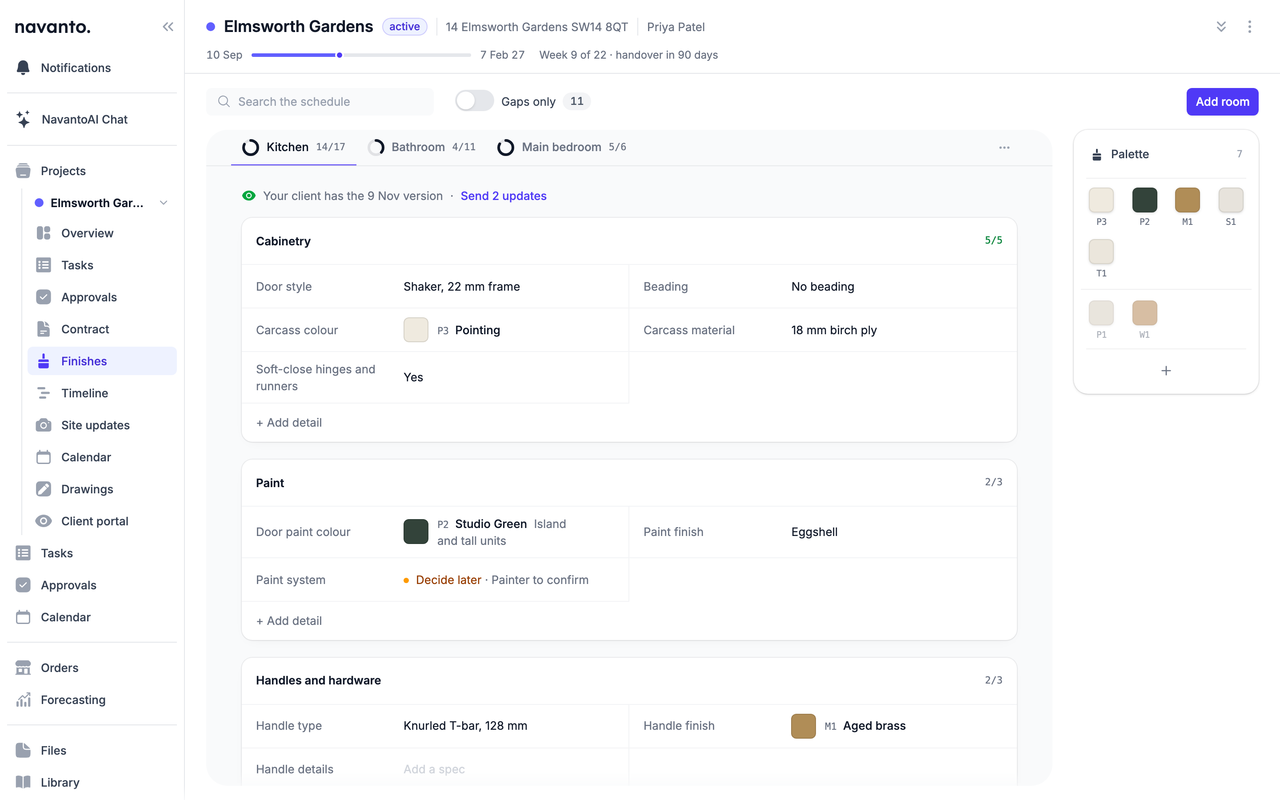
- Change it once
- Rooms point at the palette rather than repeating it, so swapping a paint or a worktop changes every room that uses it at the same time.
- Gaps you can see
- Each room counts what's specified, and Gaps only lists everything still to decide across the whole project on one page.
- Shared when it's ready
- Your client only sees a room once you share it, and the changes you make after that wait until you choose to send them.
One palette instead of a spreadsheet per room
When the finishes schedule is a spreadsheet with a tab for each room, the same paint gets typed into six places and one of them always gets missed when your client changes their mind. In Navanto you set up each finish once on the project’s palette, with a code from its kind such as P1 for the first paint or W1 for the first timber, and the rooms point at it by that code.
Change the finish on the palette and every room that uses it changes with it, and filtering the palette to Paint gives you the paint schedule for the decorators without keeping a separate one.
Rooms that start from how you work
Add room starts from your own room templates, so a new kitchen already has the cabinetry, paint, handles and worktop details you always ask about rather than a blank page. Each detail takes a finish from the palette, a line of spec text with suggestions from your earlier projects, or a fixed choice such as Yes or No for soft-close hinges.
Your library and products come with you
The paints, timbers and tiles you use on job after job live in your library, so adding your usual spray colour or carcass decor to a new project takes a click rather than typing out the name, reference and maker again. You can start a finish from one of your products as well, and its sample photo shows wherever the finish appears, because a colour swatch can’t show oak, brass or marble.
Every gap in one place
A schedule is rarely complete before work starts, so each room counts how many of its details are specified and you can mark a detail Decide later with a note of who you’re waiting on. Gaps only lists everything still to settle from every room on one page, so nothing is left to the day the tiler turns up on site asking which grout colour you want.
Share each room with your client
You share a room with your client’s portal when you’re ready for them to see it, and they get it as a board of samples with the specification beside it rather than a spreadsheet. You choose which details go out and add a note for them, and the schedule you’re working on stays on your side.
Once a room is shared, the changes you make wait until you send them, each listed with what it was and what it is now, so your client always has the version you meant them to see rather than a schedule you’re halfway through changing.
Read more about finishes in the docs
- FinishesFor your teamHow to build a project's finishes schedule from a palette of coded finishes, room by room, and keep track of what is still to decide.
- TemplatesFor your teamReusable lists of tasks, drawings or timeline phases, room templates for your finishes schedule, and how to apply them to a project.
- Using your project portalFor clientsA guide for clients to signing in, following progress, and making decisions on your project.
See finishes on your own projects
One plan priced by active projects, with every feature and unlimited seats included.